
Import Customers / Products
Overview
Section titled “Overview”Importing customers and products into Root Mobile is a quick way to get started with your data. You can upload a CSV file using our pre-formatted template, ensuring your records are added efficiently. Alternatively, you can manually add customers and products one at a time or use the Clone feature to duplicate existing records.
Importing from a CSV File
Section titled “Importing from a CSV File”1. Download the CSV Template
Section titled “1. Download the CSV Template”Before importing, download our CSV template to ensure your data is correctly formatted:
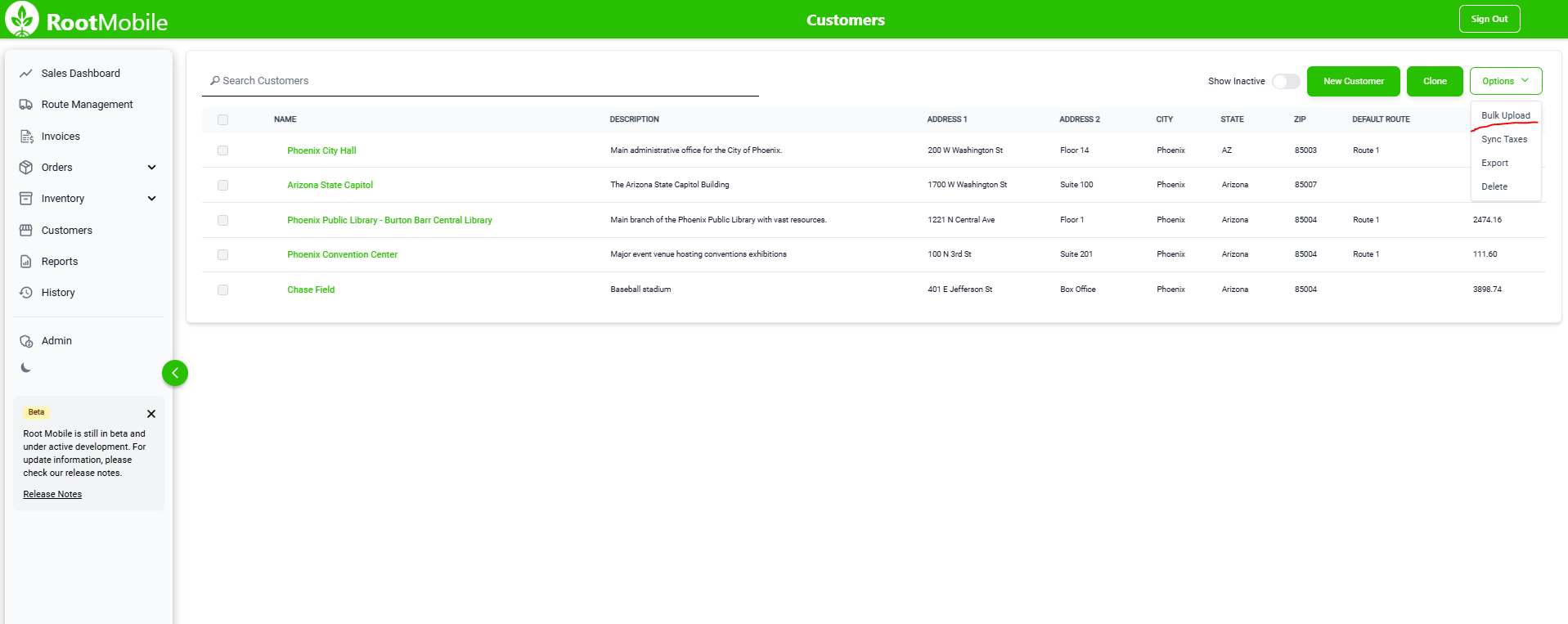
- Navigate to the Customers or Products section in the Root Mobile web app.
- Click on the “Bulk Upload” button under Options.
- Click “Blank Template” and open the file in Excel or Google Sheets.
2. Fill Out the Template
Section titled “2. Fill Out the Template”- Each row represents a customer or product.
- Ensure mandatory fields (e.g., Customer Name, Product SKU) are filled in.
- Do not modify column headers, as they must match exactly.
3. Upload the CSV File
Section titled “3. Upload the CSV File”- Return to the “Bulk Upload” screen.
- Drag and drop your completed CSV file, and watch as your data is added instantly.
A confirmation message will appear once the import is successful. If errors occur, review the error message and correct any formatting issues in your CSV file before re-uploading.
Adding Customers and Products Manually
Section titled “Adding Customers and Products Manually”If you prefer, you can add new customers and products one at a time:
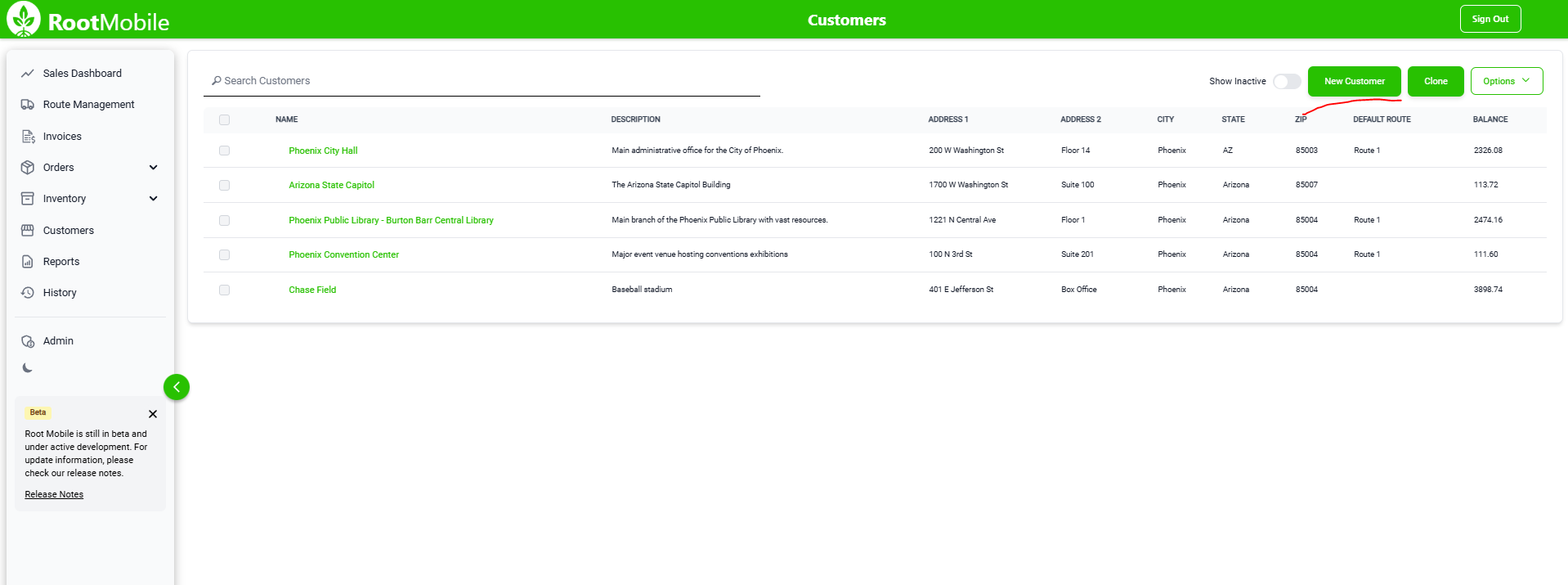
- Navigate to Customers or Products.
- Click “New Customer” or “New Product”.
- Fill out the required fields.
- Click “Save” to add the record.
Cloning an Existing Record
Section titled “Cloning an Existing Record”If you need to create a new customer or product that is similar to an existing one, use the Clone button:
- Check the select checkbox for the customer or product you want to duplicate.
- Click the “Clone” button at the top.
- Modify the details as needed, ensuring to add a new Name.
- Click “Save” to create the new entry.
Common Issues and Troubleshooting
Section titled “Common Issues and Troubleshooting”“My CSV upload failed with an error message”
- Ensure your file is using the provided template format.
- Check for missing required fields.
- Remove any extra blank columns or rows.
“Some records are missing after import”
- Check if they were skipped due to formatting issues.
“I accidentally uploaded incorrect data”
- You can delete incorrect records using multi-select, and re-upload with corrected data.
Best Practices
Section titled “Best Practices”- Always use the latest CSV template to avoid formatting errors.
- Before importing large datasets, test with a small batch.
- Use the Clone feature for quick duplication of similar records.
- Double-check required fields before uploading.
By following these steps, you can efficiently manage your customers and products within Root Mobile.