Make Orders
Creating orders on the mobile app is a streamlined process that takes you from customer selection to completed invoice. Follow this comprehensive workflow to build, process, and finalize orders with your customers.
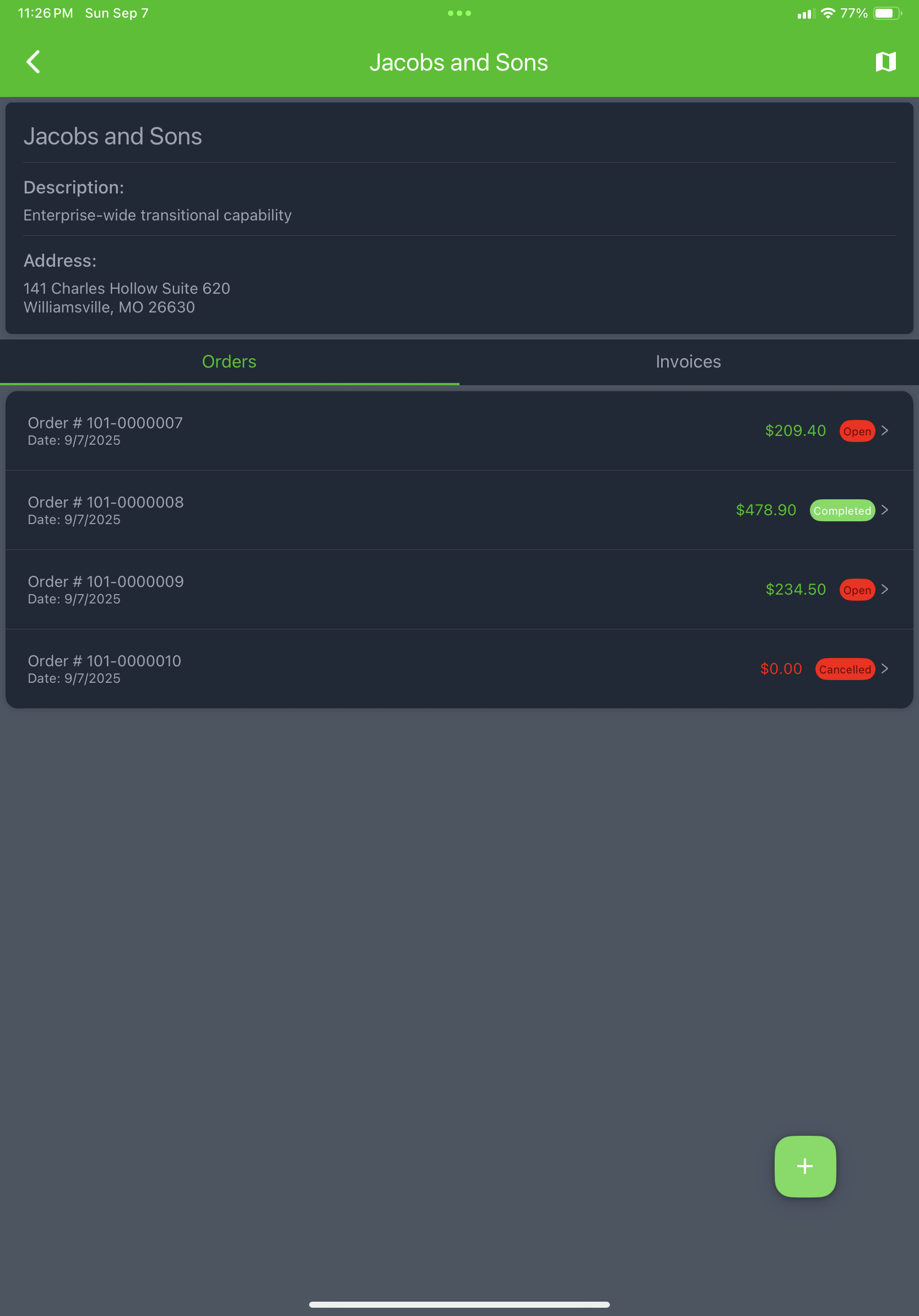
Starting an Order
Begin by selecting a customer from your itinerary. Once you tap on a customer stop, you'll be taken into the order creation workflow where you can build a customized order for that specific customer.
Building the Order
The order building interface allows you to add products and customize quantities for your customer's needs.
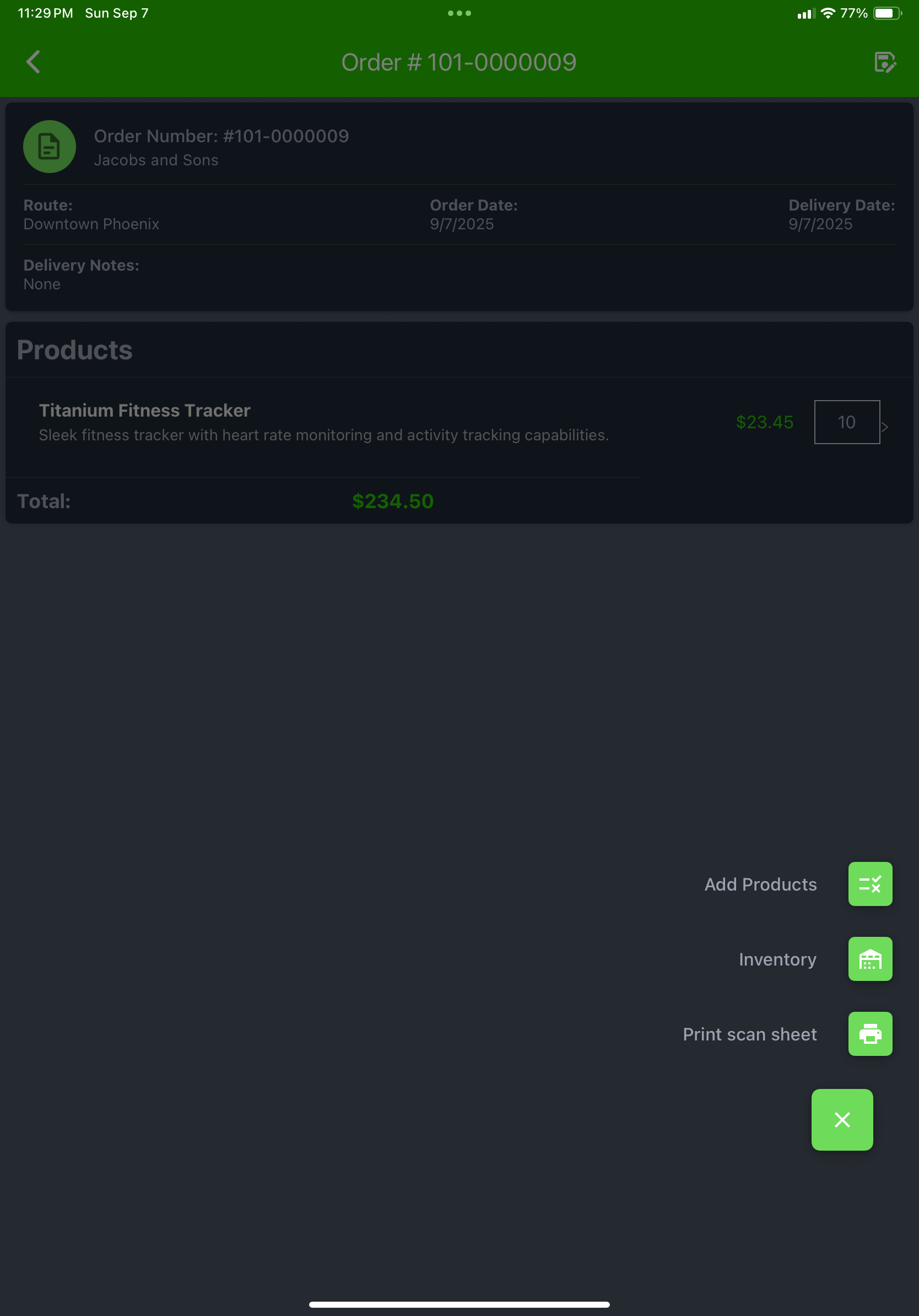
Searching for Products
Use the product search functionality to quickly find items for your customer's order:
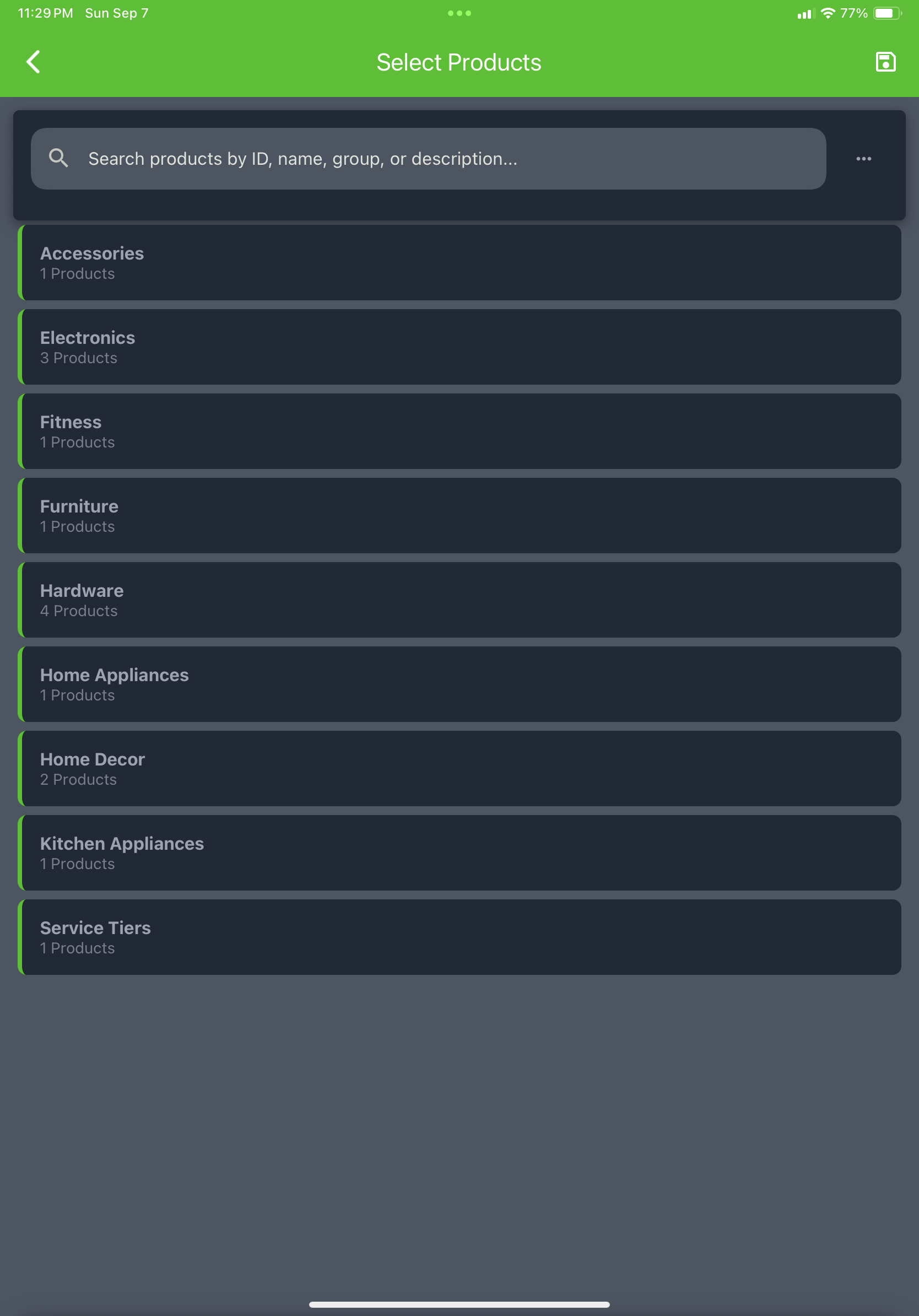
- Type product names or codes in the search bar
- Browse categories and product lists
- View product details and pricing
- Check available inventory levels
Adding Products to the Order
Once you've found the products your customer needs, add them to the order with specific quantities and options:
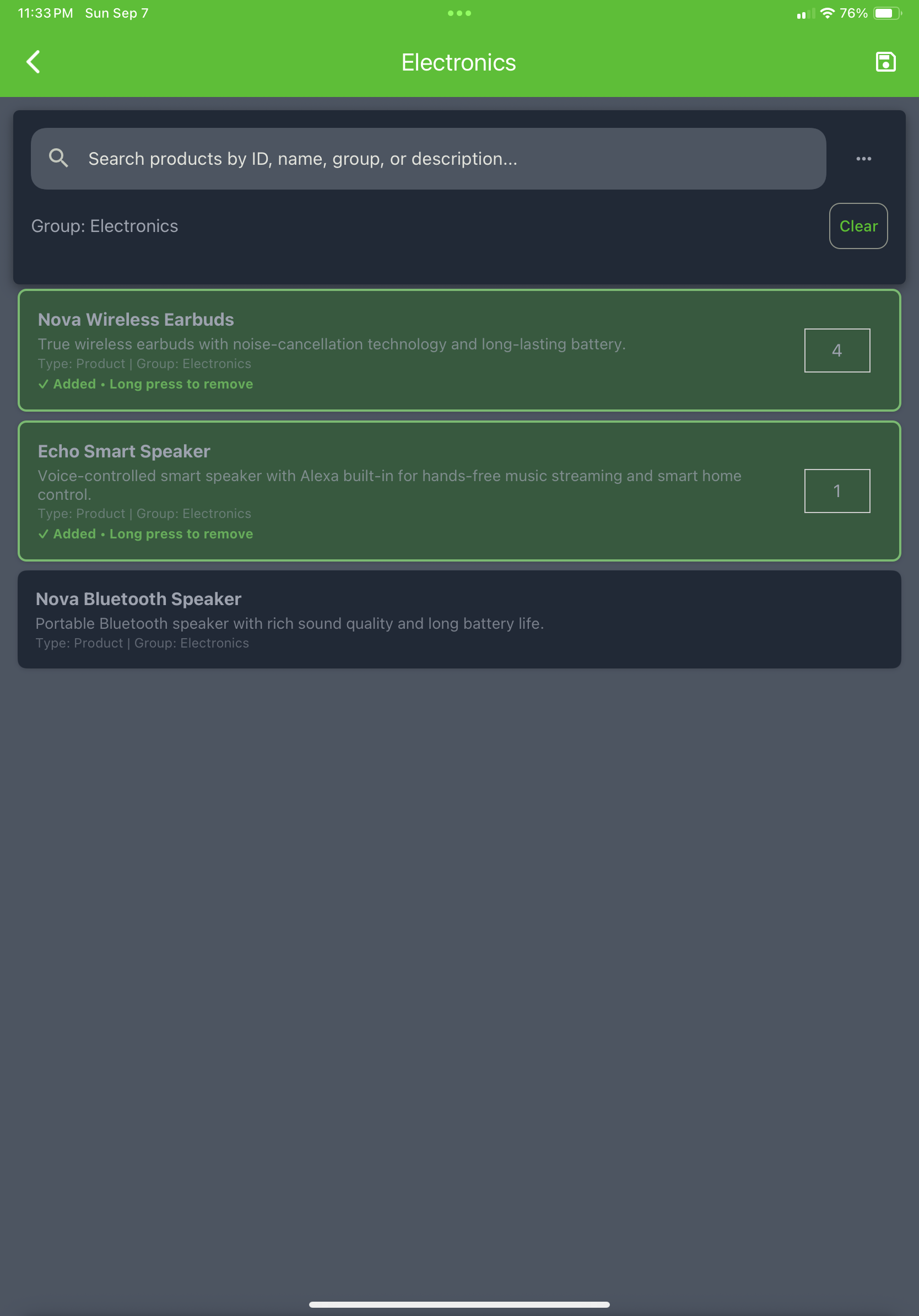
- Select quantities for each product
- Apply any applicable discounts or special pricing
- Review line item totals as you build
- Make adjustments before finalizing
Order Review and Details
Before proceeding to invoice, review all order details to ensure accuracy:
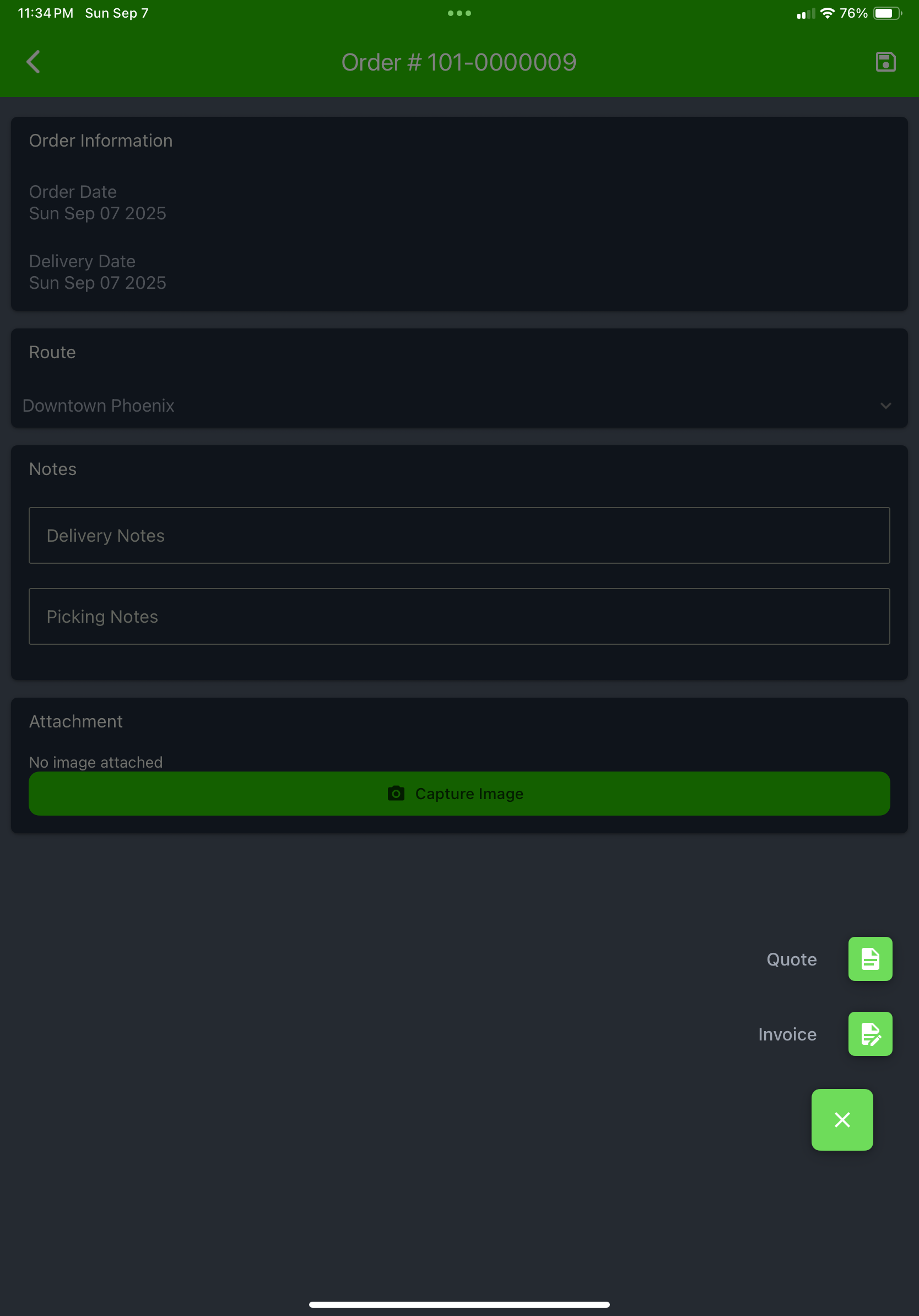
During the review process, you can:
- Verify all products and quantities
- Check pricing and applied discounts
- Add or remove items as needed
- Calculate taxes and final totals
- Confirm delivery details
Completing Your Order
After reviewing your order details, you have three options for how to proceed with the order:
1. Save Order
Choose this option to save the order for later completion without confirming delivery. This is useful when:
- The order needs to be handled at a future date
- You need additional approvals before finalizing
- Inventory availability needs to be confirmed
- The customer wants to review before committing
Saved orders can be easily retrieved by adjusting the delivery date in your itinerary, allowing you to pick up exactly where you left off.
2. Quote
Generate a quote to provide the customer with pricing information without creating a firm order. This option:
- Provides a printout of what the invoice total would be
- Helps customers make purchasing decisions
- Can be converted to an actual order later
- Useful for budgeting and planning purposes
3. Invoice
Proceed directly to the invoicing workflow to complete the transaction with the customer. This takes you through the full process including signature capture, payment processing, and receipt generation.
Ready to complete your order with invoicing? Continue to the Invoice Orders section to learn about the complete invoicing workflow.
Order Building Best Practices
- Review inventory levels before promising products to customers
- Double-check quantities and pricing during the review process
- Confirm delivery details and special instructions with the customer
- Choose the right completion option based on your workflow needs
Order Building Summary
The order building process follows this sequence: Customer Selection → Product Search → Order Building → Review → Save/Quote/Invoice
Next Step
Continue to: Invoice Orders - Learn how to complete the invoicing process and collect payments.