Update Itinerary
The itinerary screen is your central hub for managing your daily route. From here, you can view all your stops, access powerful tools, and make adjustments to optimize your day.
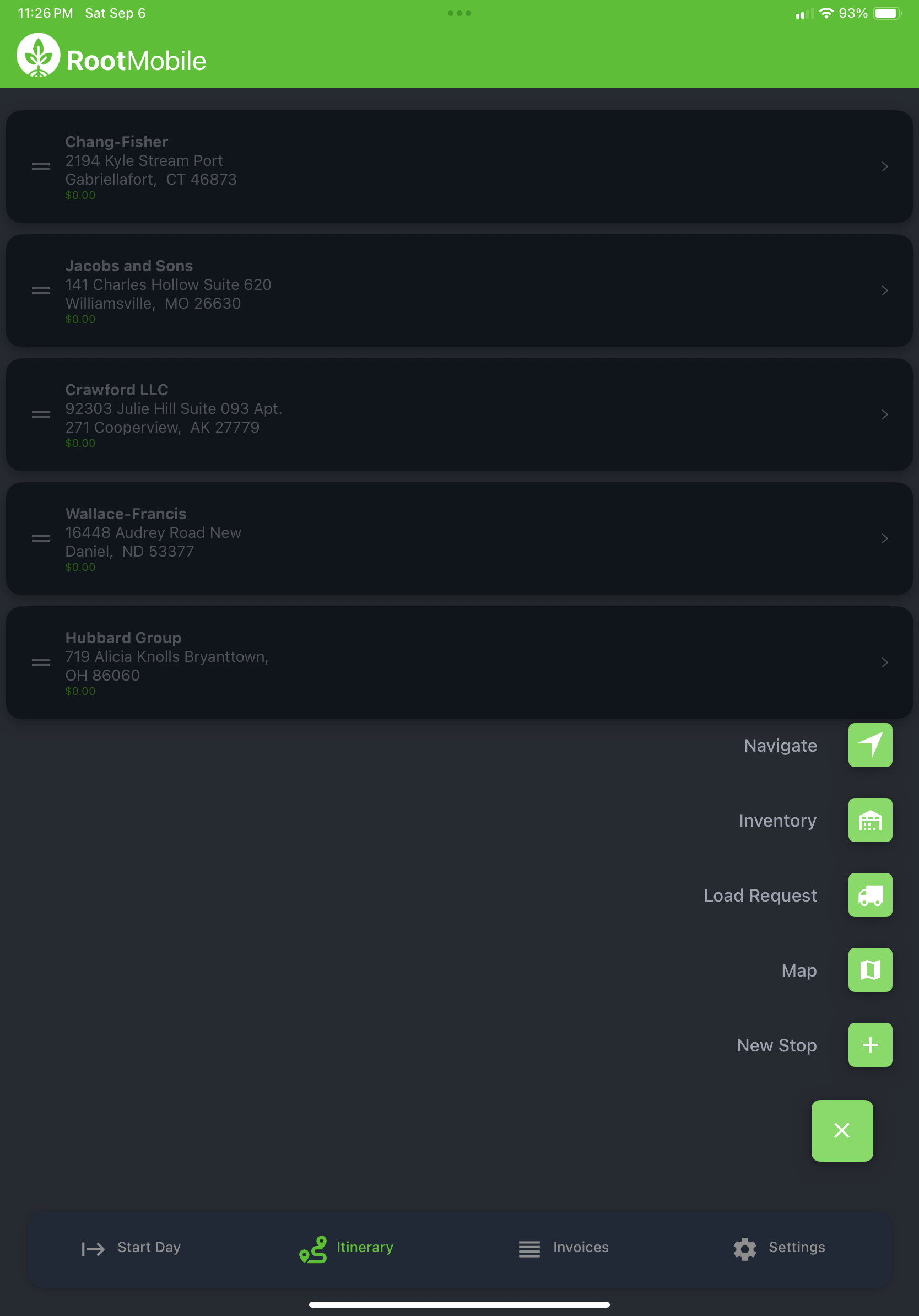
Floating Action Button (+ Button)
The floating action button (the "+" button) in the bottom right corner of your itinerary screen provides quick access to essential tools. Tap it to reveal these powerful options:
Navigate
Sends your entire itinerary address list to your device's default navigation app (Apple Maps or Google Maps). This allows you to:
- Get turn-by-turn directions for your entire route
- Use your preferred navigation app's features
- Access real-time traffic updates and route optimization
Inventory
Opens a running inventory estimate showing what's currently on hand for the truck you selected during Start of Day. This helps you:
- Track available products in real-time
- Ensure you have enough inventory for upcoming stops
- Make informed decisions about order fulfillment
Load Request
Opens a window where you can submit requests for additional inventory. Key details about load requests:
- Submit requests when you need more products loaded onto your truck
- All requests must be approved by office staff before processing
- Approved quantities will be transferred to your device on the next Start of Day
- Plan ahead as requests aren't immediate
Load Request Approval Required
Load requests require office approval and won't take effect until your next Start of Day. Submit requests early to avoid delays.
Map
Opens the in-app mapping tool for viewing your current route and discovering additional stops.
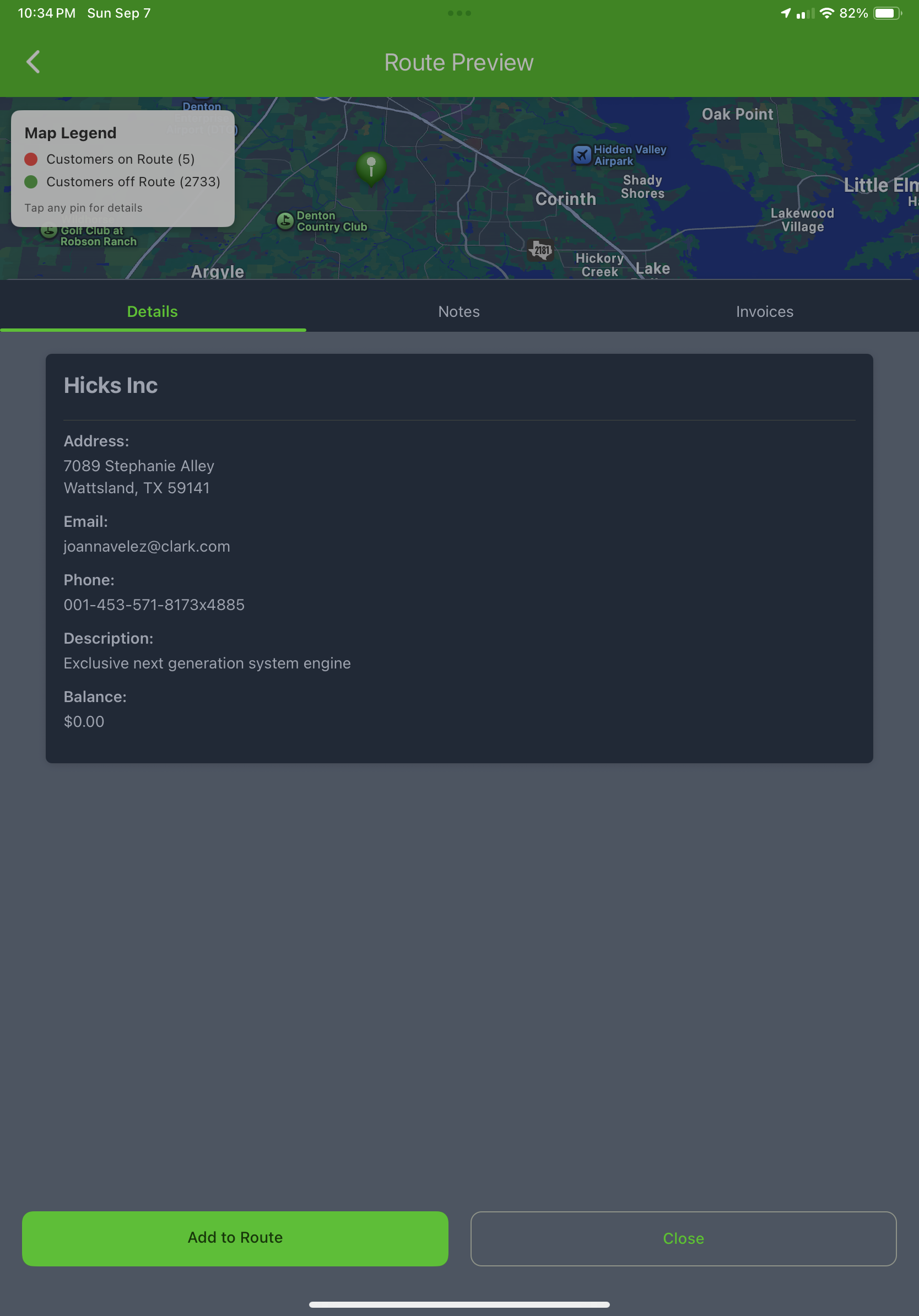
The map feature allows you to:
- View your current route visually
- See all available customer locations in your area
- Add new stops by tapping customer pins and selecting "Add to Route"
- Use an alternative method for building and modifying your route
New Stop
Opens a search and add window for expanding your itinerary. You can:
- Search for existing customers: Type a customer name to find and add them to your route
- Create new customers: Enter new customer information from scratch if they're not in the system
- Add the stop directly to your current itinerary
Managing Your Stops
Beyond the floating action button, you can also:
- Rearrange stops: Drag and drop stops to reorder your route
- View stop details: Tap on any stop to see customer information and order details
Route Optimization
Use the Map view to visualize your route and identify opportunities to add nearby customers or optimize your driving path.
Next Step
Continue to: Make Orders - Learn how to create orders for your customers.